Menus
A menu is a group of sections with products that can be shared with the clients of the restaurant.
Add
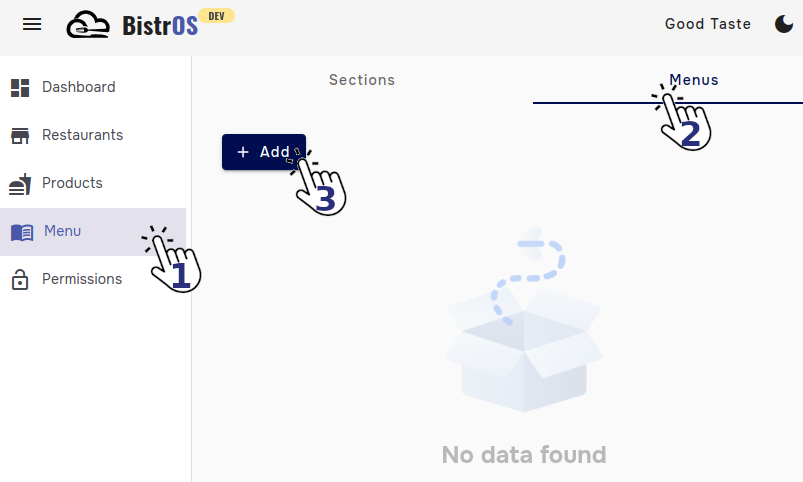
Navigate to module Menu, tab Menus, click the button +Add.
Provide the requested information.
1. Name: Type the name of the menu.
MandatoryDatatype→alphanumericMax length→40 characters
2. Status: Enable or disable the menu.
MandatoryDatatype→booleanDefault value→Active
3. Language: Select from the list the alternative languages that will be available for the manu.
MandatoryDatatype→list (multiple)
These are alternative translations to the default restaurant language, it is not necessary to include the default language.
4. Sections: Drag the sections that you want to include in the menu..
MandatoryDatatype→list (multiple)
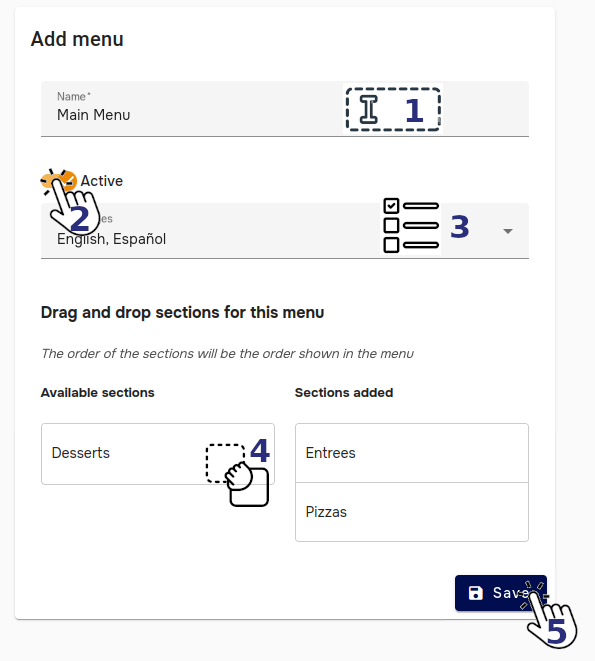
The order that you configure will be the order the sections will be showing in the menu.
5. Save: Click in the save button to save the changes.
Ready
Your menu has been created.
You can configure multiple menis for differents use cases, for example, TO GO menu, season menus, versions of the same menu, etc.
Edit
Navigate to module Menu, tab Menus, click the button  corresponding to the menu you want to edit.
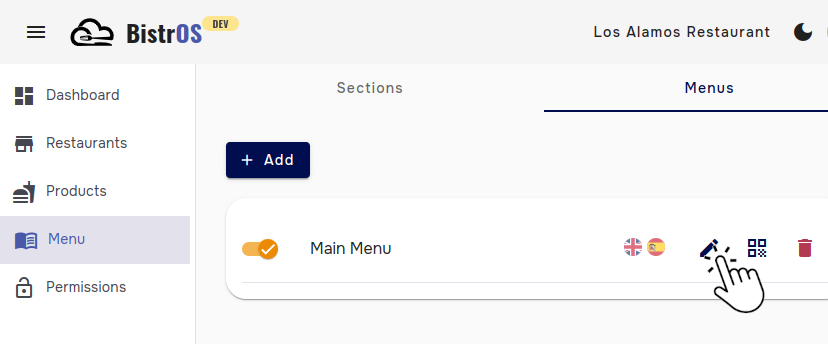
Provide the requested information the same way that you did to add.
Remove
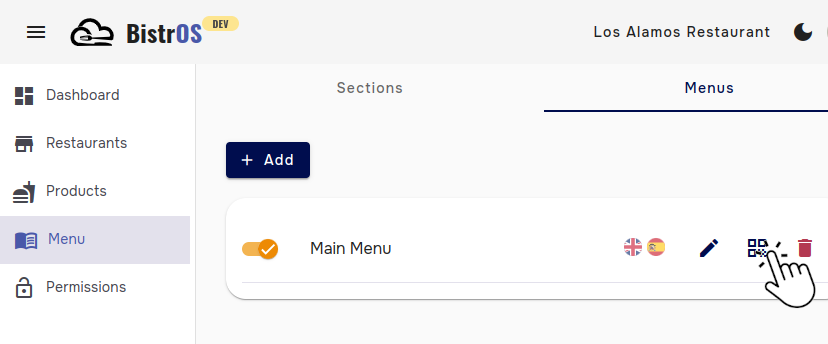
Navigate to module Menu, tab Menus, click the button  corresponding to the menu you want to remove.
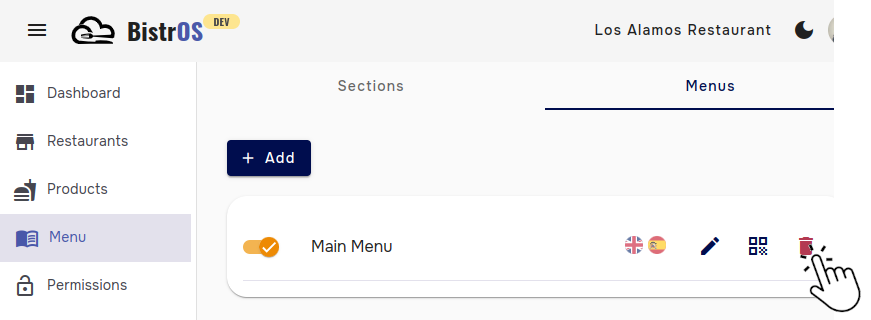
A warning message will let you know the risks of proceed, in case you want to continue, click the button Remove.
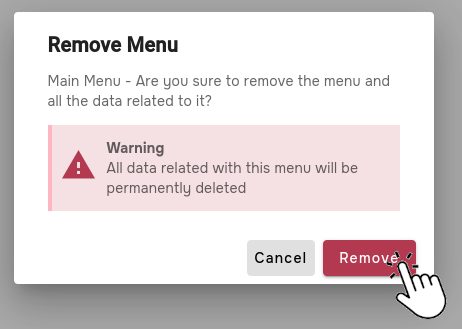
This action cannot be undone, all data related to the Menu will be deleted.
Código QR
Navigate to module Menu, tab Menus, click the button  corresponding to the desired menu.
1. Theme: Select the theme that you want to show to your customers.
2. Go to the menu: Preview of the menu as your customers will see it.
The menu preview is designed for mobile devices.
3. Download: An image with the QR Code will be downloaded, you can use this image as you want.